
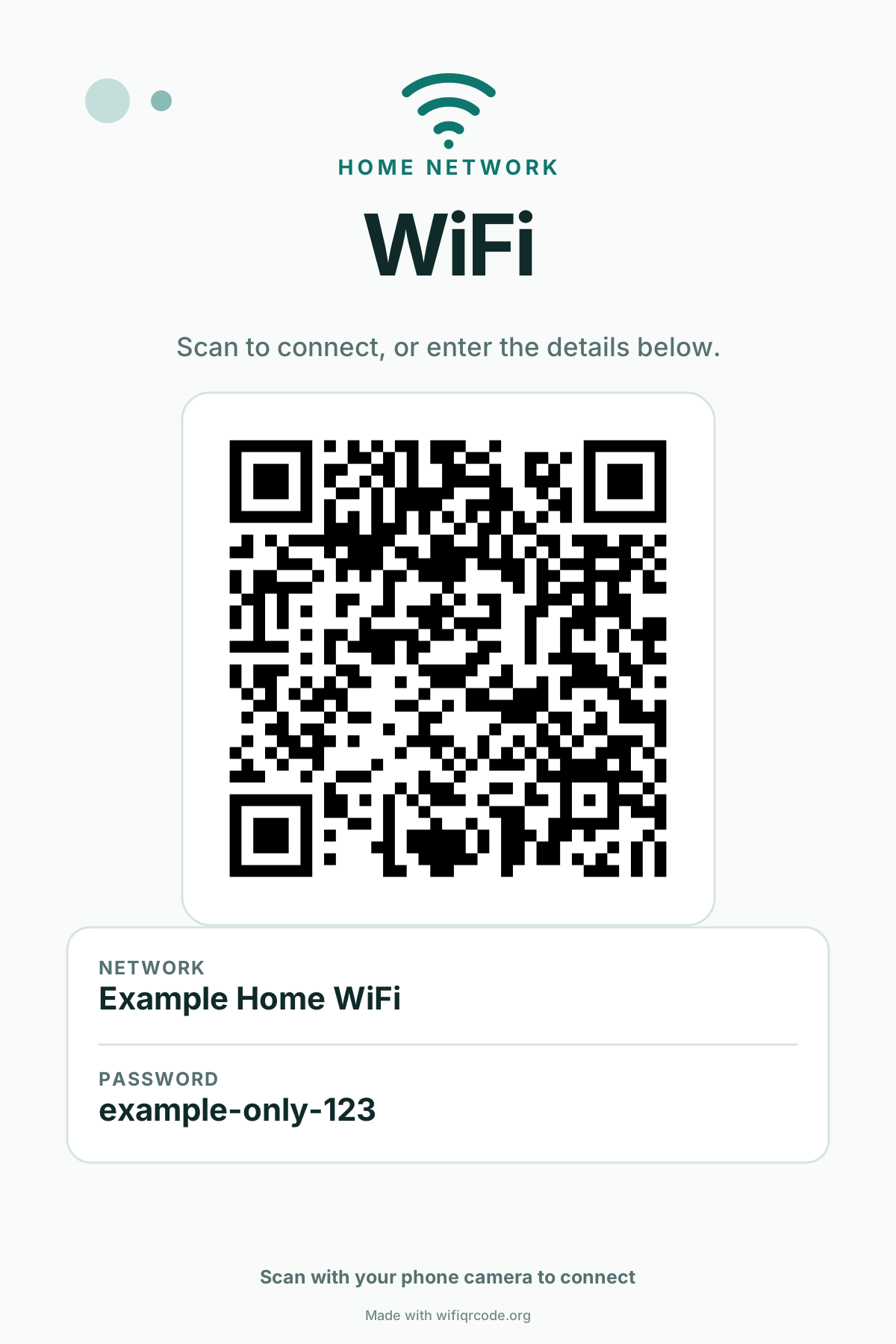
No signup. WiFi details stay in your browser.
Free Guest WiFi Sign Template with Password & QR Code
Create a WiFi password printable for Airbnb, vacation-rental, restaurant, office or home guests. Enter the network name and password, choose a sign template, then download or print a finished sign with a scannable QR code. No signup is required, and the credentials are processed in your browser.
Network details
Only enable this when the WiFi name is not broadcast.
Useful when a guest cannot scan the QR code.
Printed on the sign only. Add a short instruction guests can follow if WiFi fails.
Your WiFi password stays on this device
The QR code and sign are generated in your browser.
Your printable WiFi sign
The preview is the same artwork you will download or print.
Sample template
Enter a WiFi network name (SSID).
Save or print your sign
Next, choose a printer or Save as PDF in the browser dialog. Match the paper size and check the preview before printing.
Choose a printable WiFi sign template
Actual layouts made with this tool. All network names and passwords below are fictional examples. Choose a design, then enter your own details.
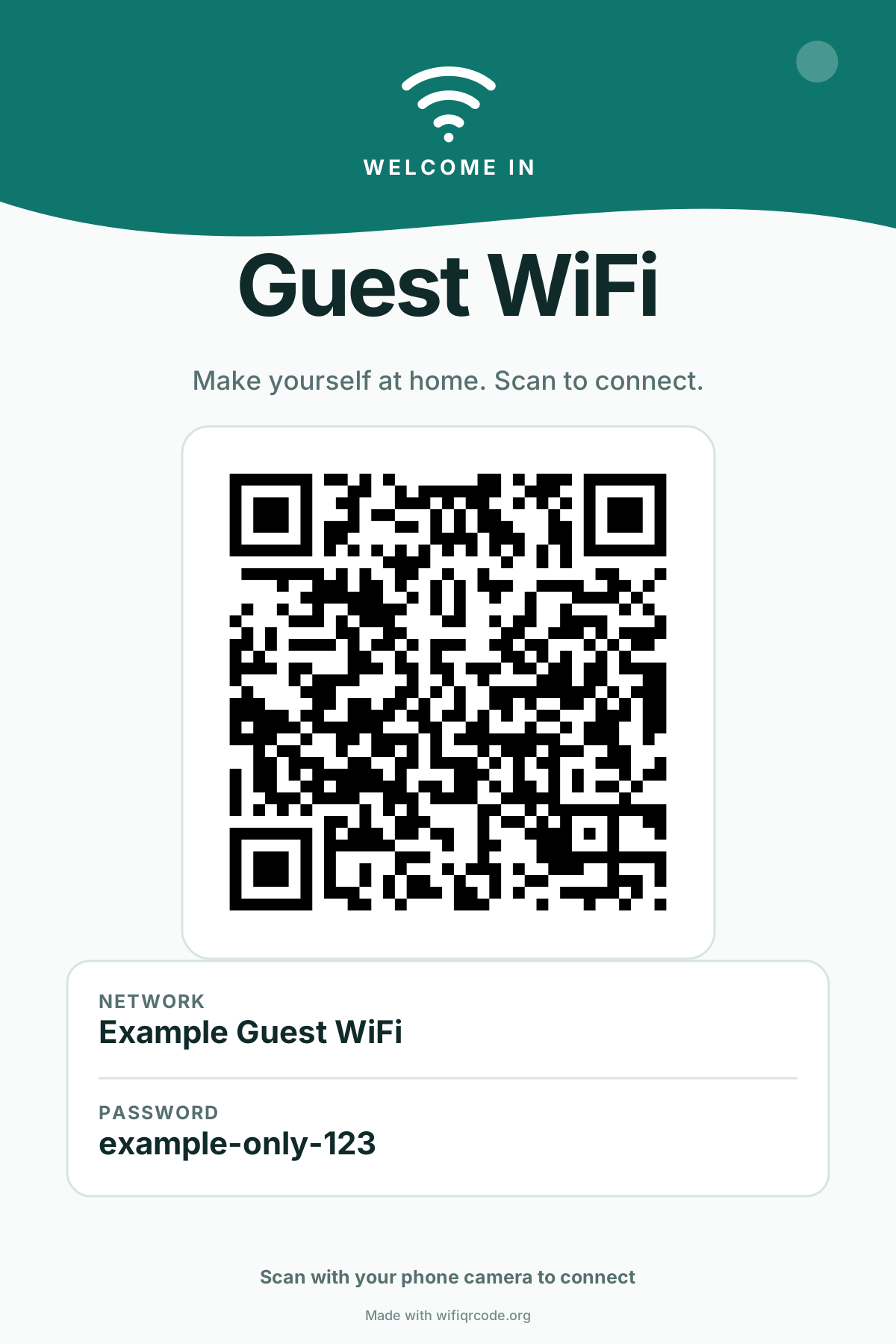
Vacation rental: welcome guests
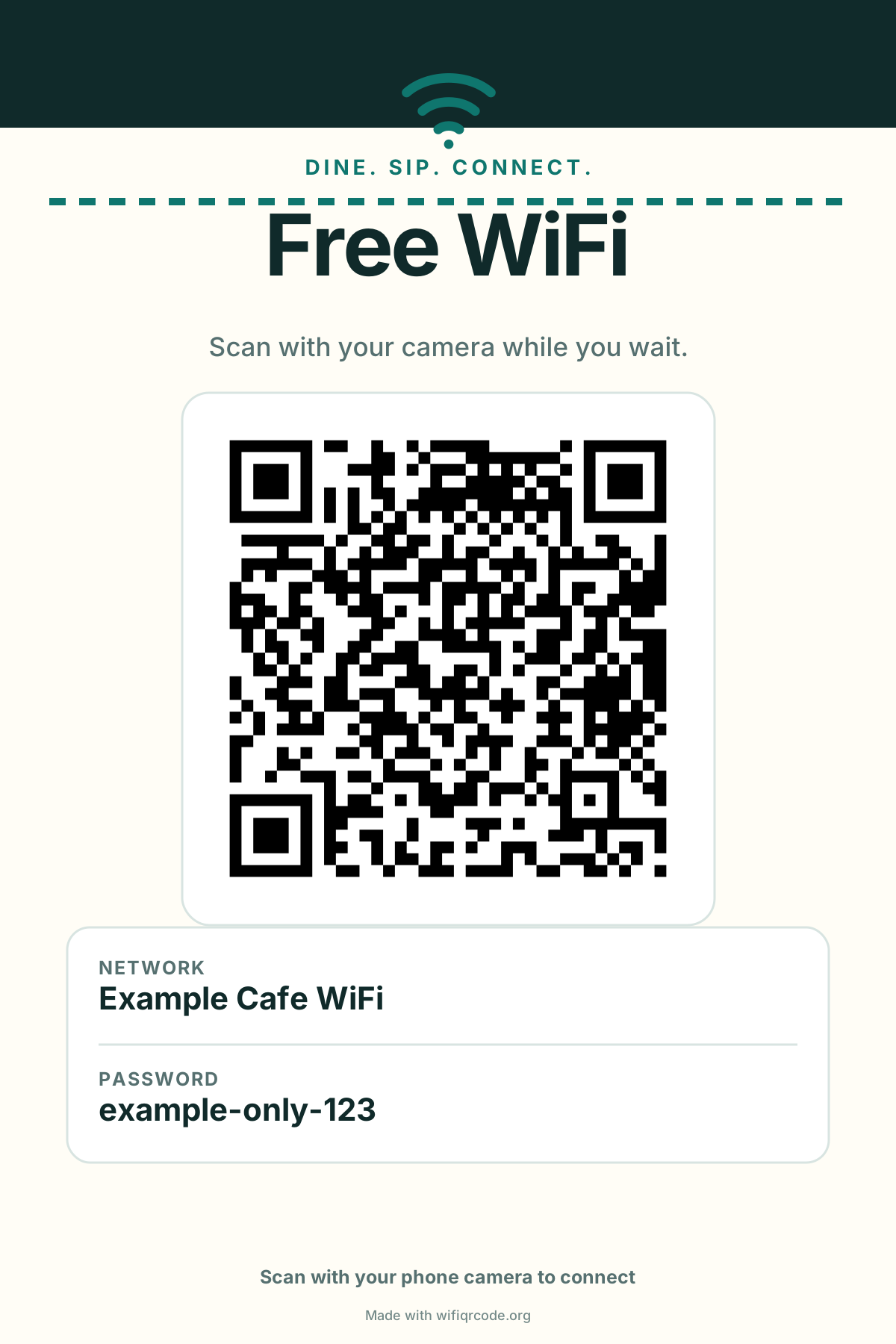
Café: guest WiFi at the counter
Practical answer
What should a guest WiFi sign include?
A WiFi password sign is useful only when a guest can connect without asking the host to repeat or spell the password. The printable layout therefore needs both a fast path for phones and a clear fallback for devices that cannot scan.
Four details guests actually need
Decorative templates are optional. These four pieces of information determine whether the sign solves the connection problem.
Exact network name (SSID)
Copy the name exactly, including spaces, punctuation and capital letters. This lets laptop users and guests with older phones select the correct network manually.
A tested WiFi QR code
The QR code stores the network name, security type, password and hidden-network setting. A compatible phone can read those details and offer to join without typing.
An optional visible password
Show the password when guests may use laptops or devices without reliable QR scanning. Hiding the printed text does not remove the password encoded inside the QR code.
One fallback instruction
A short line such as “Having trouble? Message your host” gives the guest a next step without turning the sign into a manual.
Print size, PNG, SVG or PDF: what is the difference?
Print size and file type answer different questions. Size controls the physical layout you are designing. PNG, SVG and Print / Save PDF control how you download, edit, share or print that layout.
| Choose | Best for | What you get |
|---|---|---|
| 4×6 or 5×7 sign + Print / Save PDF | A small frame, bedside table, rental welcome binder or café counter | The browser turns the selected sign size into a print job or PDF. Select the matching paper in the print dialog. |
| US Letter or A4 sign + Print / Save PDF | A wall, reception area, office, classroom, event or larger restaurant display | A full-page printable layout. Print size chooses the page proportions; Save as PDF creates the file. |
| Full-sign PNG | Messages, email, digital welcome books and ordinary image apps | A finished image containing the design, network name, QR code and any visible password or help note. |
| Full-sign SVG | Design software, professional printing and resizing without blur | A vector version of the complete sign. The QR pattern and text remain sharp when scaled. |
| QR code only | Adding the connection code to your own Word, Canva or design document | Only the QR code is exported. The printable sign layout, network label and fallback text are not included. |
Recommended setup for Airbnb, restaurants and other guests
The same QR technology works in every location, but the safest network, useful sign size and fallback message depend on who will see the sign and where it will be placed.
Airbnb and vacation rentals
Start with a 5×7 sign near the welcome book, entry table or television. Use a separate guest network, include the exact WiFi name and add a host-contact note for guests whose phones do not scan.
Restaurants and cafés
Use a 4×6 counter sign for close scanning or Letter/A4 for a wall. Share a customer network that is separate from point-of-sale, staff and device-management networks.
Homes and guest rooms
A 4×6 frame is usually enough. Keep the network name visible so laptops can find it, and decide whether the printed password is necessary for the people using the room.
Hotels and offices
Use Letter or A4 near reception or meeting rooms when the sign must be read from farther away. Confirm the guest-network policy with the person responsible for the network before displaying credentials.
What this tool verifies
Before handing the sign to guests, scan the exported artwork on a phone and test a printed copy where you plan to display it.
Credentials stay in the browser
The network name and password are used by the page to create the QR image. Analytics events record choices such as template, security type and file format, not the entered network name or password.
Automatic QR round-trip check
After generation, the page decodes the QR image and compares the decoded text with the expected WiFi payload before export becomes available.
A physical scan test is still required
Print one copy, place it at the intended distance, and test it with at least one iPhone and one Android phone when possible. Check both the QR connection and manual password path.
Set up guest access that works
Choose the network guests will join
Use the credentials for your personal or guest network: WPA/WPA2 personal, WEP, or open. Ask your network administrator for the connection method on a managed enterprise network.
Share access with the right guests
Put a guest-network code where intended visitors can scan it. Remove the sign when you want to stop sharing those credentials.
Test the finished print
Scan at the expected viewing distance, check for glare, and try the phones your guests use. A sharp, high-contrast print makes the code easier to scan.
Refresh the sign when WiFi details change
After changing the network name, password, security type, or hidden-network setting, generate a new sign, test it, and replace the old copy.
What the free WiFi password printable includes
The generator produces a finished guest-facing sign, not just a square QR image that still needs to be rebuilt in another design app.
Five real scene designs
Home, Airbnb, restaurant, hotel, and office choices change the actual exported sign, not just a sample network name.
Four practical print sizes
Export at 4×6, 5×7, US Letter, or A4 for frames, counters, reception desks, rooms, and walls.
Full-sign SVG and PNG
Download the complete artwork with the QR code, network name, fallback password, and optional guest help note already arranged.
Optional visible password
Show it for guests who cannot scan, or turn it off before exporting when the QR code alone is enough.
Browser PDF workflow
Use Print / Save PDF for a shareable document without uploading credentials to a PDF service.
True vector sign artwork
The full sign SVG contains vector QR paths and stays sharp when a designer or print shop scales it.
Guest WiFi sign and printing questions
Direct answers to the questions that usually appear between making the code and putting the finished sign in front of guests.
How do I make a WiFi password printable?
Enter the exact network name and password. For a complete sign, select Sign, choose the finished size, and use Print / Save PDF. Confirm the paper in the browser dialog. To print only the WiFi QR code, select Code only, download PNG or SVG, and place it in your own document.
Is this really a free guest WiFi sign template?
Yes. You can create and export the included home, Airbnb, restaurant, hotel and office sign templates without creating an account. The page generates the QR code and sign in your browser.
Does hiding the printed password keep the QR code secret?
No. Hiding the text does not remove the credentials encoded in the QR code. Someone with the code may read the password or join the network. Use a guest network intended for sharing and check who can see the sign before displaying or sending it.
How large should the QR code be when printed?
For close-range scanning, keep the code at least about 1.2 inches (3 cm) wide and leave clear white space around it. Use a larger code when people will scan from farther away.
Which paper size should I use?
4×6 or 5×7 works well for a small frame or table sign. Letter or A4 is better for a wall, reception desk, classroom, or event. Select the matching paper in your browser print dialog and use Fit to page if needed.
Should the password appear under the QR code?
Usually leave it off when scanning is enough. Show it when older devices, laptops, or accessibility needs make manual entry useful. Anyone who sees the sign can use the credentials.
Why does a screen QR work but the printed one does not?
Low contrast, glossy glare, ink bleed, a code printed too small, or a cropped quiet zone can cause failure. Use the built-in high-contrast design, print at normal quality, and test the physical copy.
What happens after I change the WiFi password?
The old sign becomes inaccurate. Generate and print a new code whenever the SSID, password, security type, or hidden-network setting changes.
Can I send the sign as a PDF?
Yes. Choose Print / Save PDF, then select your browser's Save as PDF destination. The WiFi details remain in the generated document, so share it only with intended recipients.
Print once, stop repeating the password
Create the sign, scan-test it, and put it where guests naturally look for WiFi.