Free WiFi QR Code Generator

Create a QR code and a print-ready WiFi sign in one place. Guests can scan or type the details.

Enter your WiFi details

Choose a sign style, then add the exact network name and password shown by your router.

Where will you use it?

Network details

Only enable this when the WiFi name is not broadcast.

Useful when a guest cannot scan the QR code.

Printed on the sign only. Add a short instruction guests can follow if WiFi fails.

Your WiFi password stays on this device

The QR code and sign are generated in your browser.

Preview and export

Check the finished sign or QR code before you download, print, or share it.

Choose your output

Your printable WiFi sign

The preview is the same artwork you will download or print.

Sample template
Enter a WiFi network name (SSID).
WiFi Scan with your phone camera to connect. Network: Guest WiFi HOME NETWORK WiFi Scan to connect, or enter the details below. NETWORK Guest WiFi PASSWORD wifi-password Having trouble? Message your host. Scan with your phone camera to connect Made with wifiqrcode.org
Sign size

Finished sign size: 4×6 / 5×7 for frames; A4 / Letter for a full sheet. This does not start printing.

Save or print your sign

Next, choose a printer or Save as PDF in the browser dialog. Match the paper size and check the preview before printing.

How it works

Create a working WiFi QR code in three steps

A WiFi QR code removes the two mistakes that cause most guest connection problems: choosing the wrong network and mistyping a long password. The generator keeps the process on one page and gives you a result you can test before sharing.

  1. 1

    Enter the exact network details

    Copy the WiFi name exactly as it appears on the router or a connected device. WiFi names and passwords are case-sensitive. Choose WPA for most WPA, WPA2, and WPA3 Personal networks, WEP only for an older WEP network, or None for a truly open network. Mark Hidden network when the SSID is not broadcast.

  2. 2

    Generate and check the code

    The free WiFi QR code generator converts those details into the standard WiFi QR text format. Punctuation and reserved characters are escaped before encoding. The finished symbol is then decoded again in your browser, so a basic encoding problem can be reported before you download or share it.

  3. 3

    Test, download, and place it

    Scan the result with a phone that is not already connected to the network. Confirm that it offers the correct WiFi name, then complete the connection. Download a crisp PNG for everyday use or an SVG when the code must stay sharp at different sizes. Need a complete display? Continue to the dedicated printable WiFi sign maker.

WiFi QR code guide

What the QR code stores—and how phones use it

A reliable result starts with understanding what is inside the square. It is not a remote login service or a link to a password database. It is a compact set of connection instructions that a compatible phone can read.

The payload follows a common WiFi format

A typical payload looks like WIFI:T:WPA;S:NetworkName;P:Password;;. The T field describes security, S is the SSID, P is the password, and H can identify a hidden network. You do not need to write this text yourself. The generator formats it and escapes characters such as semicolons, colons, commas, quotes, and backslashes so they are not mistaken for separators.

Choose the security type that matches the router

For a normal home or guest network protected by WPA, WPA2, or WPA3 Personal, choose WPA. Select WEP only when the router genuinely uses that obsolete security method. Choose None only for an open network with no password. Enterprise WiFi that asks for a username, certificate, domain, or EAP method needs more settings than this simple format carries and is not supported here.

Compatibility depends on the receiving phone

Current iPhones and many Android phones recognize WiFi information through the built-in camera or system QR scanner. The phone still decides whether to show a Join prompt, and older devices or third-party camera apps may only display the encoded text. Keep the network name and password available as a fallback when sharing access with a mixed group of devices.

Most scan failures are fixable input or display problems

First check capitalization, spaces, the selected security type, and the Hidden network setting. Next, scan from a screen before printing. If the digital version works but the printed one does not, restore a white margin around the code, use dark modules on a light background, avoid stretching it, and print it large enough for the expected viewing distance. Test again after every design or password change.

Which option should you select?

Match the setting to the network configuration, not to the brand or age of the phone that will scan it.

Generator optionWhat it representsChoose it when
WPAPassword-protected WPA, WPA2, or WPA3 Personal WiFiThis is the correct choice for most current home, guest, and small-business networks.
WEPAn older network explicitly configured to use WEPUse it only when the router settings say WEP; consider upgrading the network security.
NoneAn open WiFi network with no passwordLeave the password empty and use this only when anyone nearby is allowed to join.

Built for a dependable result

Everything you need from a free WiFi QR code generator

The useful parts are available directly on the page. There is no account wall, watermark, expiry date, or requirement to route a guest through a tracking URL.

Private browser processing

The network name and password are used by code running in your browser. They are not submitted to our server to create the QR image. Use the same care you would use with any saved copy: anyone who can read the final code may be able to join that network.

Real network configurations

Create codes for WPA/WPA2/WPA3 Personal, WEP, open, and hidden networks. Correct escaping lets network names and passwords contain punctuation without breaking the WiFi field structure. Enterprise credentials and certificate-based access remain outside the tool's scope.

Built-in verification

After generation, the browser reads the pixels back and compares the decoded result with the intended WiFi payload. That check catches many encoding failures, but it cannot confirm that the router password is correct. A real scan-and-connect test is still the final proof.

PNG and true SVG downloads

PNG is convenient for messages, documents, and common image editors. SVG is a vector file, so edges stay clean when the code is resized for a card, poster, or other layout. Keep the original proportions and an empty margin around either format.

Phone-first, with no app required

The form, validation, preview, and downloads work in a mobile browser. You can create a code beside the router, test it with another device, and save the result without installing a QR generator app or creating a user profile.

A direct path to a complete sign

If guests also need to read the network name or type the password manually, use the separate printable sign tool. It combines the tested code with human-readable details while this homepage stays focused on fast WiFi QR code generation.

Need a full sign, not only a QR code?

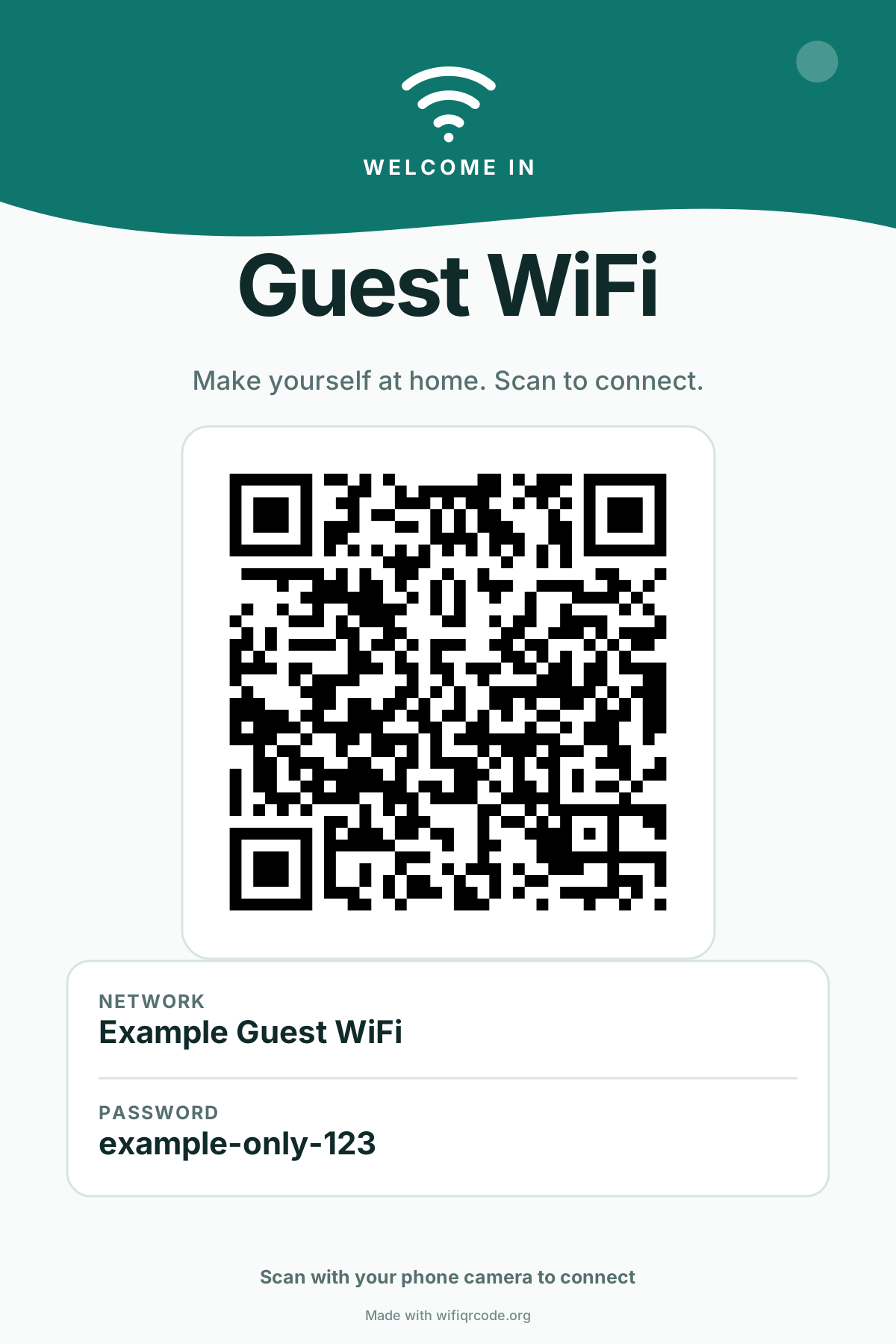
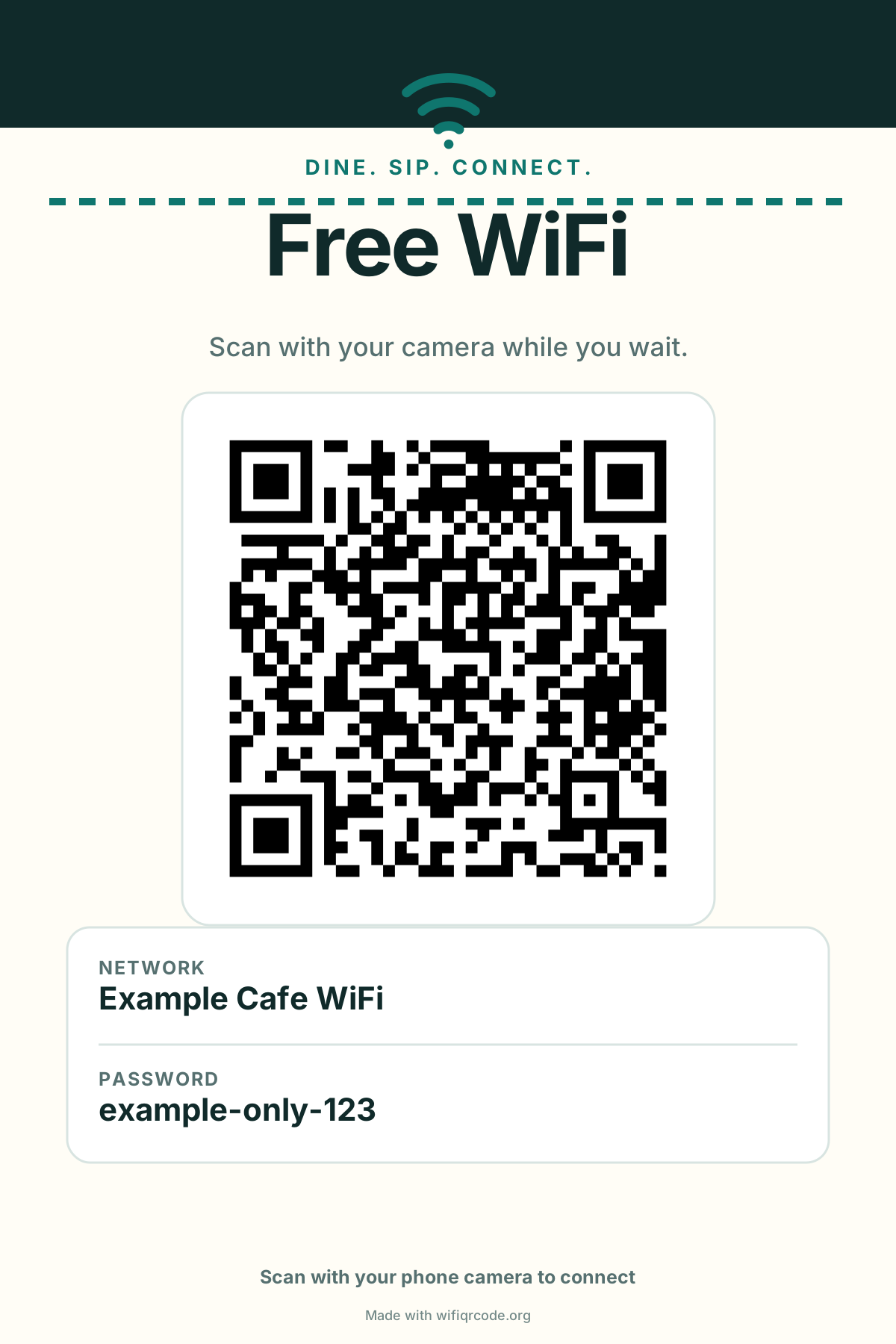
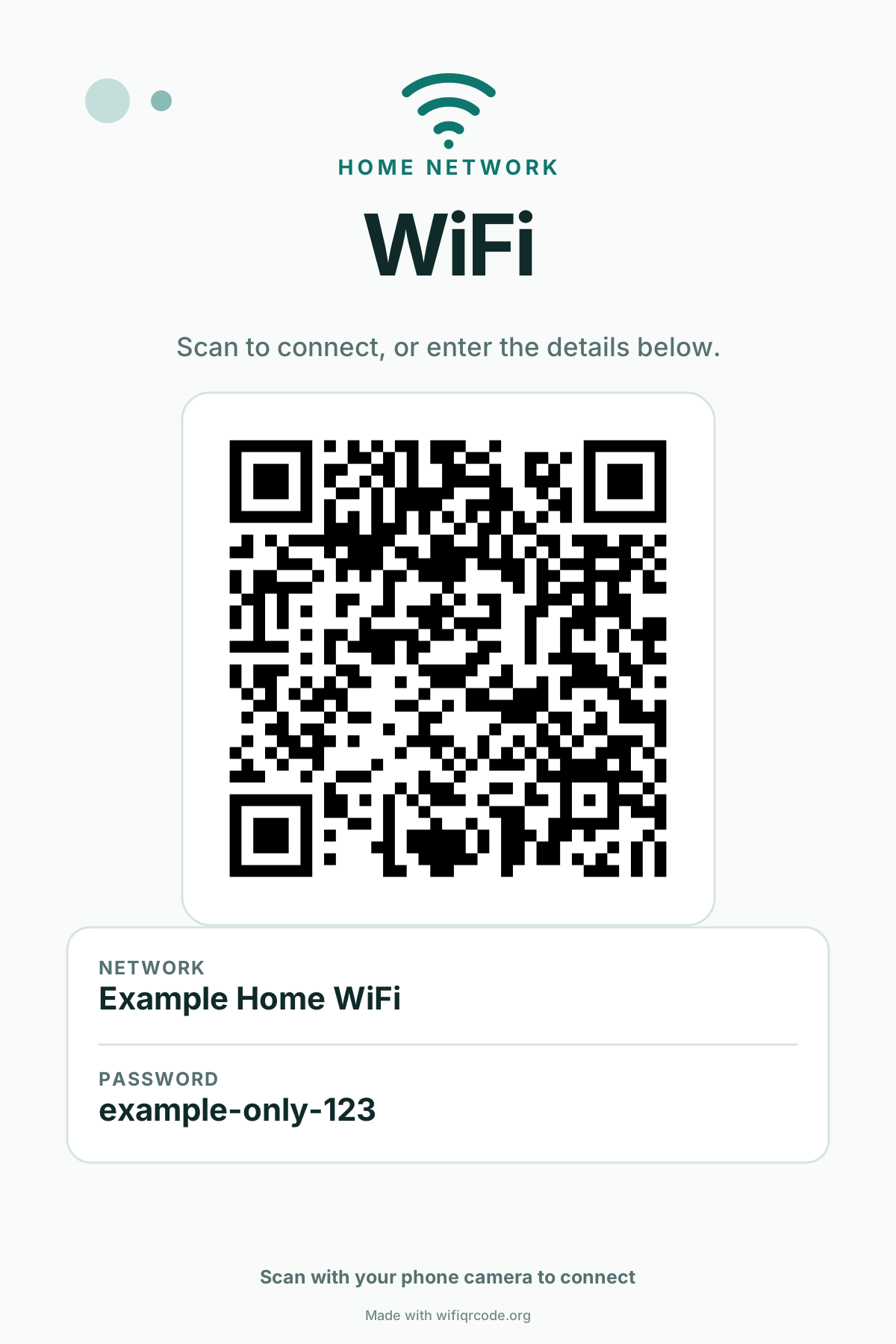
These are real layouts from the same tool. Every network name and password shown is fictional.

Home: a simple framed sign

Home: a simple framed sign

Vacation rental: welcome guests

Vacation rental: welcome guests

Café: guest WiFi at the counter

Café: guest WiFi at the counter

Create a printable guest WiFi sign

WiFi QR code questions

Short answers about compatibility, privacy, downloads, and common connection problems.

How does a WiFi QR code work?

It stores your network name, security type, password, and hidden-network setting in a standard WiFi text format. A compatible phone reads that data and offers to join the network. The person scanning still confirms the connection on their device.

Is my WiFi password uploaded?

No. Generation and validation run locally in your browser. The page does not need an account or an API request containing your WiFi details. The downloaded QR code does contain the credentials, so share or display it only where intended users can access it.

Does it support WPA3?

Yes. WPA, WPA2, and WPA3 Personal networks use the WPA value recognized by current phone QR readers. Enterprise networks that require usernames, certificates, domains, or EAP settings are not supported by this generator.

Why will a phone not connect after scanning?

Check capitalization and spaces in the network name and password, confirm the security type, and enable Hidden network if the SSID is not broadcast. Test the on-screen code on another current phone. If only the printed version fails, increase its size, contrast, and white margin.

Can the WiFi name or password contain special characters?

Yes. The generator escapes reserved punctuation before it builds the WiFi payload. Enter the real characters exactly as configured on the router; do not add your own backslashes. Always test the result because device support can differ.

What happens after I change the WiFi password?

The old QR code still contains the old password, so it must be replaced. Return to the generator, enter the new credentials, test the new result, and remove old digital or printed copies that guests might continue to scan.

Can I print the QR code for guests?

Yes. You can download the code alone as PNG or SVG. For a complete layout that also shows the network name and password, open the printable WiFi sign tool and choose a suitable scene and paper size.

Is the generator really free?

Yes. The core generator, browser-based validation, PNG and SVG downloads, and printable sign options are available without registration, a watermark, or an expiration date.

Share WiFi without spelling out the password

Create a private, scan-tested QR code now, or turn it into a clear sign when guests need a readable fallback.